


What’s New in Build .3157
Recent Workspaces
Reopen folders from a dedicated Recent Workspaces window. Give a workspace an emoji or folder icon from the list or from Workspace Settings, so you can spot it at a glance.
Publish to X
Connect an X account to a workspace and ask CodeBot to prepare a post with text, links, or images from your files. Review the post before it goes out. Instagram sign-in and token renewal also received improvements.

Shared Accounts on Mac
Campfire can reuse accounts from updated versions of Fire and GitBrowser on the same Mac. Your default account and model choices still belong to each app.
Highlights from the First Campfire Release, Build .3155

Folder Workspaces and Persistent Chats
Open a folder and work with CodeBot alongside your files. Keep several chats in the same workspace, fork a conversation to explore another direction, and pick up where you left off when you reopen the folder.
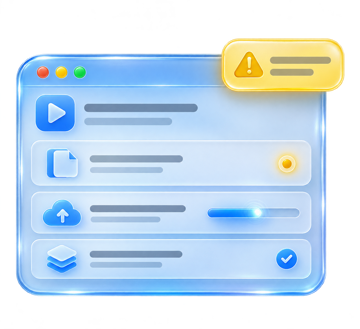
Background Work and Activity
Keep chatting while CodeBot works in the background. The Activity window shows what’s running and which chats need input or approval. Inspect what goes into the next request and use Short Memory to limit the history it sends.
Scheduled and Proactive Work
Schedule a task once or on a recurring basis. Run it in the original chat, in a fresh background chat, or in a fork. Enable Proactive Mode to let CodeBot check in when something needs your attention.

Model-to-Model Conversations
Choose two participants, give each its own model and skills, and set a turn limit. Watch the exchange live, pause to steer it, or resume a saved conversation later.
Built-In Browser Control
Keep a browser open in the workspace sidebar. CodeBot can navigate, read pages, and take screenshots while you follow along or step in yourself.

Skills and Workspace Knowledge
Load skills for the task at hand and keep them with the chat. CodeBot can search workspace files, knowledgebases, and saved chats for context from earlier work.

Image Workbench
Generate images from prompts and references, compare results, and save or drag the one you want into the workspace. Paint a mask to regenerate a selected area while keeping the rest of the image.

Video Generation
Generate a short clip from a written prompt or animate a source image. Keep the references and generated clips beside the rest of your project.
Voice and Transcription
Browse and preview voices before generating narration or a voice-over. Use /voice to prepare a voice draft, or transcribe an audio recording for use in a chat or document.

Music and Sound Effects
Describe a track or sound effect in chat and generate audio with a compatible provider. Listen to the result and save it alongside your other workspace files.
Hosted and Local Models
Set up and select an AI account from the Welcome window. Switch between hosted providers, connect local language models through Ollama or LM Studio, or use ComfyUI for your own media workflows.
Instagram Workflows
Connect an Instagram professional account to your workspace. Prepare posts, reels, and stories from workspace assets, or draft replies to comments and messages for your approval.